
Reduce Work and Increase Screen Impact
Simplify Screen Management from One Platform
Reduce Vendor Overlap
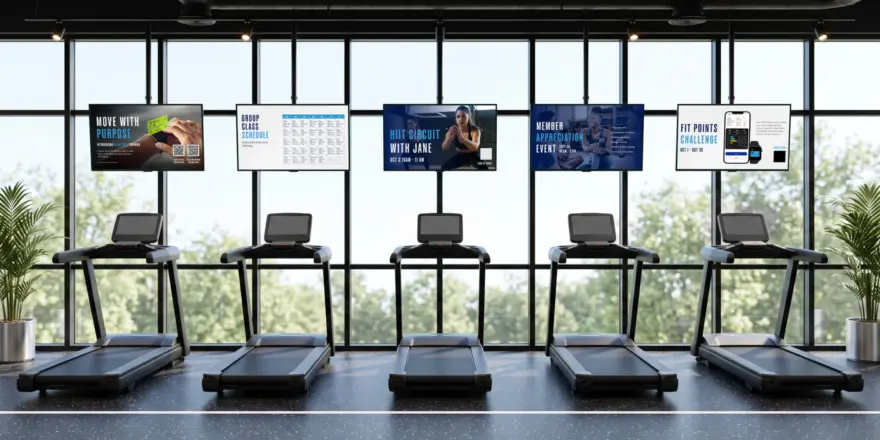
- Combine signage, wellness content, and facility messaging in one platform
- Reduce multiple subscriptions and vendors
- Simplify screen management across locations
Save Staff Time on Content Updates
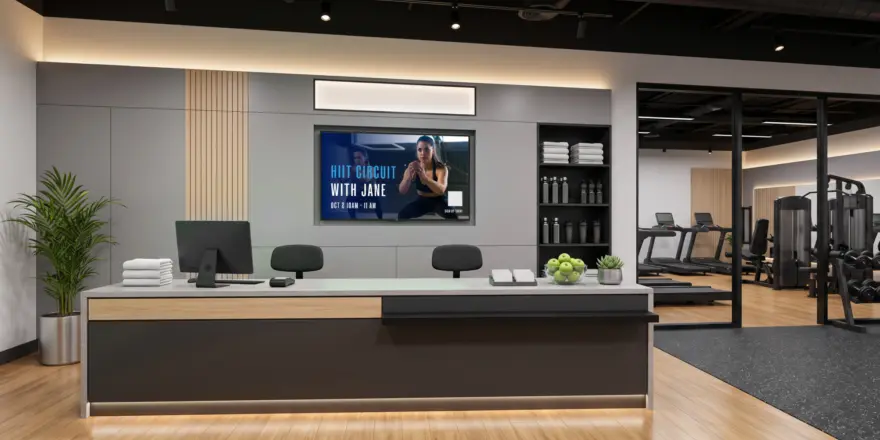
- Update all screens from a single dashboard
- Schedule content in advance
- Eliminate manual and printed updates
Promote Amenities and Programs
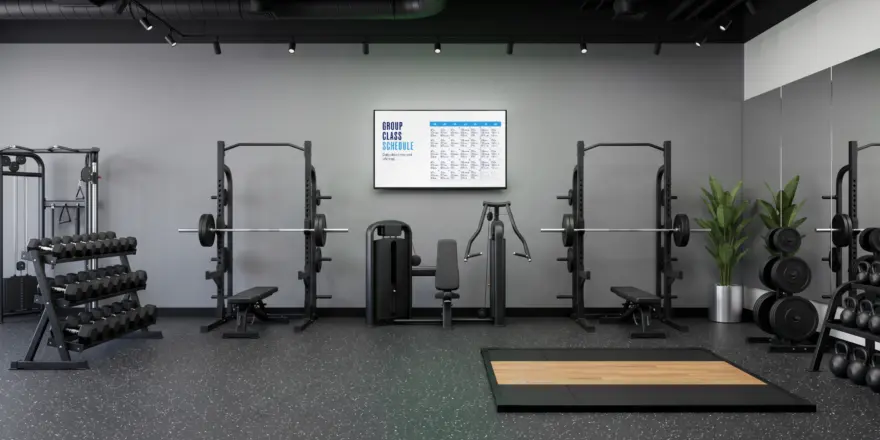
- Showcase classes, events, and services
- Increase visibility for key offerings
- Drive greater participation and engagement
Put Idle Screens to Work
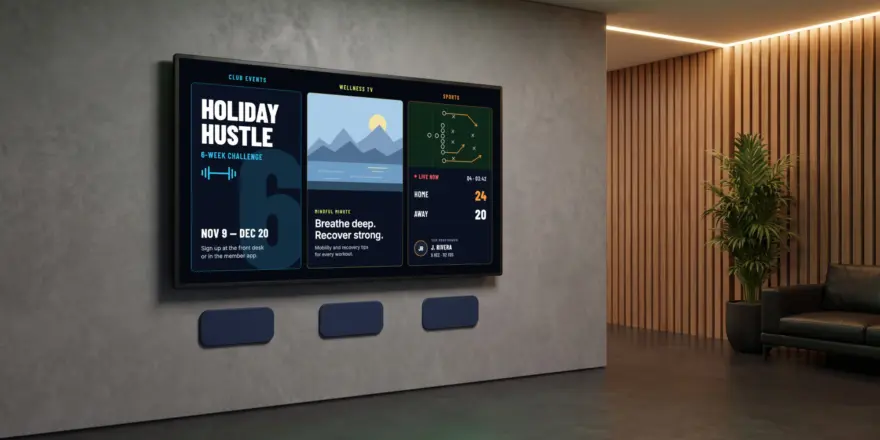
- Turn unused displays into communication tools
- Share promotions, updates, and announcements
- Maximize the value of existing screens
One Platform. Many Ways to Engage.
What Can I Put On My Screens?
How It Works
Step 1: Connect Your Screens
Install the Media Hub to connect the screens you want to manage. From there, each display can be assigned to a specific zone, location, or use case within your facility. The Media Hub acts as the bridge between your displays and the Broadcast platform, helping deliver the right content to the right screen at the right time.
Step 2: Build Your Content Mix
Combine available content with your own custom signage, promotions, and facility messaging. Organize content into playlists based on your screens, locations, or audiences.
Step 3: Schedule and Manage
Control what appears on each display and when. Make updates from one centralized online platform without having to manage each screen individually.


Power a More Connected Fitness Experience
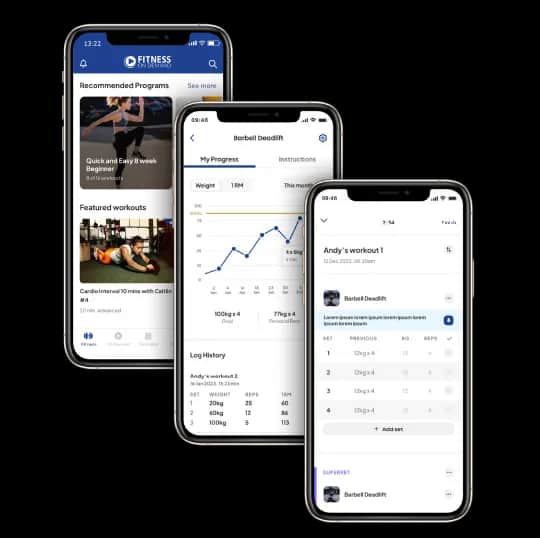
Mobile App
Extend your fitness experience beyond the facility.
Fitness Touchscreen
Add a one-to-one fitness instructor supplement to your screens.
Group Studio
Bring over 1,800 world class on-demand sessions into your facility.
Recovery Touchscreen
Include guided recovery and wellness to your screen experiences.

Built for Your Business

Create stronger communities by promoting resident events, amenities, building announcements, onsite services, and local information. Keep residents informed while enhancing their overall living experience.
Stop Letting Your Screens Sit Idle
Transform every screen into a tool for communication. See how OSMOTION can help you simplify operations, maximize the value of existing displays, and create a more connected experience for the people you serve.